
Login greeter
The Pearl greeter is the login screen. It is a client for greetd, which authenticates your login and launches the desktop you select. It shares its presentation with the lock screen, but the two are different tools: the locker unlocks an already running session, while the greeter creates a new one.
The greeter runs on ordinary Aqueous. Its host starts a private session bus
and a standard Aqueous instance for the login screen; no special compositor
mode or patched build is required. The pearl-greeter-git package is
independent of the shell packages: it does not install the Pearl desktop and
does not replace Aqueous’s own session entry. Every installed desktop stays
selectable, and choosing another session hands over to that desktop’s own
shell, services and locker.
Installing the package
Section titled “Installing the package”Install pearl-greeter-git from the
seafoam-labs repository, or build it from the
repository’s packaging/arch-git recipe, which produces both pearl-git and
pearl-greeter-git from one checkout:
cd packaging/arch-gitpackage_dir=$(mktemp -d "$PWD/packages.XXXXXX")shelly build --sync-deps --package-destination "$package_dir"shelly install standard "$package_dir"/pearl-greeter-git-*.pkg.tar.zstThe package requires Aqueous, UWSM, greetd, D-Bus, polkit and the GTK runtime, and uses your distribution’s greetd PAM policy; it installs no separate fingerprint or locker PAM configuration.
Installation selects the login screen for a later boot; it does not restart the running desktop:
- It creates
/etc/pearl/greeter.json, with UWSM sessions allowed and the Aqueous desktop as the preferred session. - It provisions the dedicated
pearl-greetersystem account and its directories. - An existing
/etc/greetd/config.tomlis copied toconfig.toml.bakfirst, then replaced with Pearl’s configuration, which runs greetd on VT7. VT1 stays available for console login. - It selects
pearl-greeter.serviceas the display manager for the next boot and records the previous selection. No service is stopped or restarted; reboot when you are ready.
On Arch upgrades, the package rewrites /etc/greetd/config.toml and keeps
the original .bak. Review local changes afterward. It preserves
/etc/pearl/greeter.json and may start the appearance-sync socket without
restarting the display manager.
Removing the package, or running
sudo /usr/lib/pearl/pearl-greeter-setup restore, brings back the previous
display-manager selection and, while the configuration still matches Pearl’s
template, the original greetd config. sudo /usr/lib/pearl/pearl-greeter-setup enable repairs the setup after an earlier
install left another greeter, such as Ly, enabled alongside it. The full
setup and recovery behavior is documented in the Pearl
repository.
Before and after an upgrade
Section titled “Before and after an upgrade”Before updating the greeter, save your work, check that console login works,
and back up /etc/greetd/config.toml and /etc/pearl/greeter.json.
Restarting the greeter can end your desktop session.
After the update, check which display manager is selected:
systemctl status display-manager.service --no-pagersystemctl is-enabled pearl-greeter.serviceReview .pacnew files and compare the greetd command and keyboard settings
with your backup before logging in again. Wallpaper sync only changes
appearance; it does not set the greeter’s keyboard layout.
Wrong keyboard layout or failed login
Section titled “Wrong keyboard layout or failed login”-
Check the username, selected desktop and Caps Lock. To check key positions, type harmless text in a visible username field, then clear it. Never reveal your password to test a layout.
-
If you still cannot sign in, try another installed desktop or press
Ctrl+Alt+F1for console login. Pearl Greeter uses VT7. Console layout is separate; use your distribution’s recovery route if console login fails too. -
From a working console, check the service and current boot logs:
Terminal window systemctl status pearl-greeter.service --no-pagerjournalctl -b -u pearl-greeter.service -n 100 --no-pagerJournal access may require administrator privileges. Review the output before sharing it, and include your package versions and intended layout.
-
To restore the previous display manager, run:
Terminal window sudo /usr/lib/pearl/pearl-greeter-setup restoreThe helper restores the old greetd config only if the current file still matches Pearl’s template. If it refuses, review the differences rather than overwriting your changes. Confirm the selected display manager before rebooting.
The greeter runs its own Aqueous session. Your desktop’s
Input settings do not change its layout, and the greeter
currently has no layout selector or xkb_layout JSON setting.
The German-layout upgrade problem still has no confirmed general fix.
Keep console access available; changing PAM or disabling authentication does
not fix a keyboard layout.
The login card
Section titled “The login card”With account discovery enabled (the default), a dropdown lists your accounts and Other user… opens manual entry. The standard flow is password-first: type your password and press Enter to sign in. A failed attempt clears the password, keeps your user and session selection, and refocuses the field.
Custom PAM stacks that ask for a PIN or code before the password need
"password_first": false in the configuration; the password field then stays
disabled until PAM actually requests it. Fingerprint logins work as passive
conversations: scan instructions and retries advance on their own, exactly as
described under fingerprint login.
The desktop chooser lists installed Wayland sessions, with localized names
and IDs such as wayland:gnome.desktop; X11 sessions are supported behind an
opt-in setting. The footer offers larger text, high contrast and reduced
motion for the current greeter session, and the power controls follow the
system’s capabilities and ask for confirmation.
Configuration
Section titled “Configuration”The greeter reads /etc/pearl/greeter.json, owned by root. The package
installs it, shelly preserves your changes through its backup and .pacnew
handling, and an invalid security-critical configuration stops startup rather
than falling back silently. After an upgrade, review any .pacnew file and
merge what you want with sudoedit /etc/pearl/greeter.json; one upgrade note
matters for authentication: configurations that omit password_first now
default to true, while an explicit false is preserved for custom PAM
stacks.
The settings most worth knowing:
| Setting | Behavior |
|---|---|
theme, gtk_theme |
material_dark, material_light or gtk, with an optional installed GTK theme name |
wallpaper, wallpaper_fit, wallpaper_color |
Administrator-owned PNG or JPEG background, cover or contain, optional solid color |
font_size, reduced_motion |
12 to 32 px base font and animation policy |
preferred_output, preferred_output_edid |
Monitor for the login card, by connector or by identity hash |
roots |
Ordered session directories, each wayland or x11; earlier entries mask later ones with the same ID |
default_session, force_session |
Preferred session ID, or an administrator-enforced one |
allow, deny |
Optional session ID lists; deny wins |
remember_session |
Opt-in memory of the last accepted session per username; defaults off |
allow_uwsm |
Defaults true; set false to disable entries that directly invoke UWSM |
x11 |
Defaults false; enabling also requires startx and the packaged X11 adapter |
accounts, power, screen_reader |
Account discovery, permitted power controls and the screen-reader launcher |
password_first |
Defaults true for standard password-first PAM stacks |
auth_timeout_seconds |
30 to 300 seconds for the attempt deadline and input inactivity |
Session memory contains only username and session ID records, never commands, environment or passwords. Remembered and configured session IDs are resolved against the currently installed sessions, and a session whose launcher or compositor is missing is marked unavailable instead of being offered.
To pin the login card to a monitor by identity rather than by its current
port, run aqueousctl outputs --json in your desktop session and copy that
monitor’s edid_sha256 into preferred_output_edid. The identity wins over
the connector name, and the setting applies when the greeter next starts.
Syncing appearance from Settings
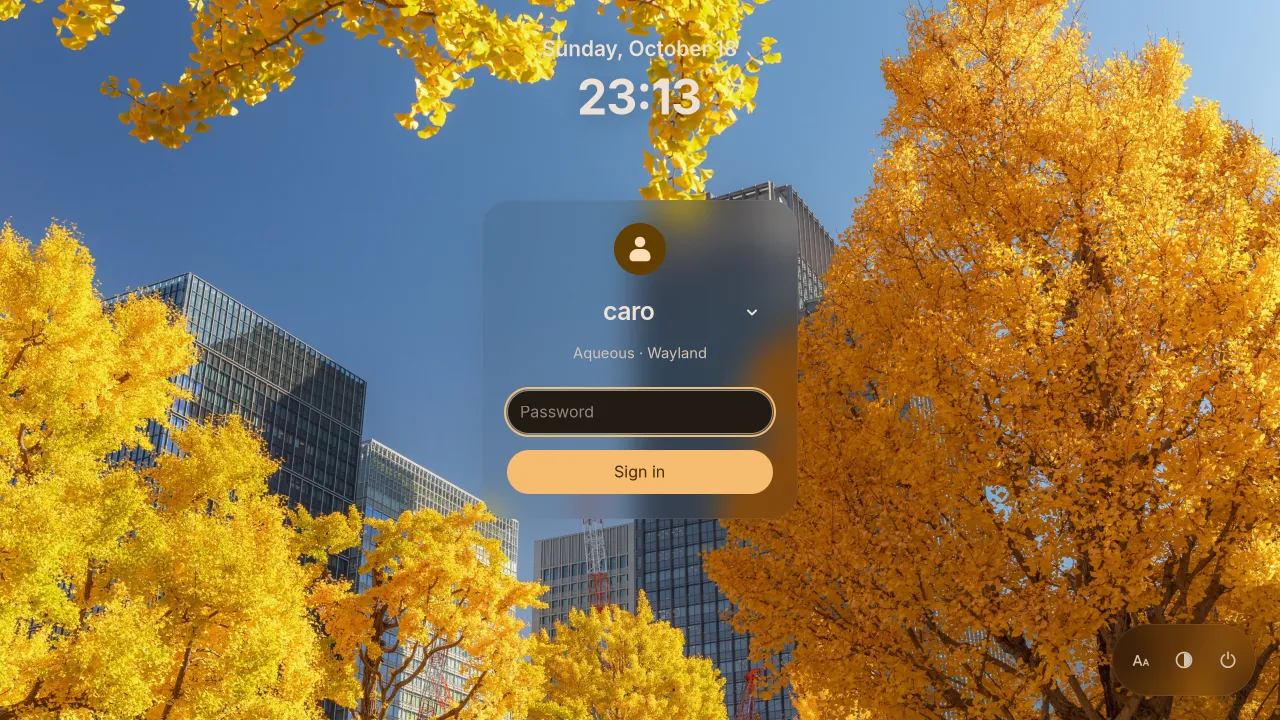
Section titled “Syncing appearance from Settings”Open Settings → Appearance → Login screen → Choose image and sync.
Authenticate when prompted. Pearl copies the PNG/JPEG to
/etc/pearl/greeter-assets and, with dynamic theming enabled, writes
palette.json there too. Check the result at the next login screen.
If no authorization prompt appears, check the
polkit agent.
Example of applied theme:
Troubleshooting
Section titled “Troubleshooting”If the greeter does not appear after a reboot, follow the greeter runbook in
the Pearl repository’s logging
guide: check
that pearl-greeter.service is the selected display manager, that VT7 is
free, and that /etc/greetd/config.toml matches Pearl’s template. A masked or
custom display-manager unit makes automatic setup report a failure instead of
replacing it; resolve that unit, then rerun sudo /usr/lib/pearl/pearl-greeter-setup enable.